
Text-to-Video Performance
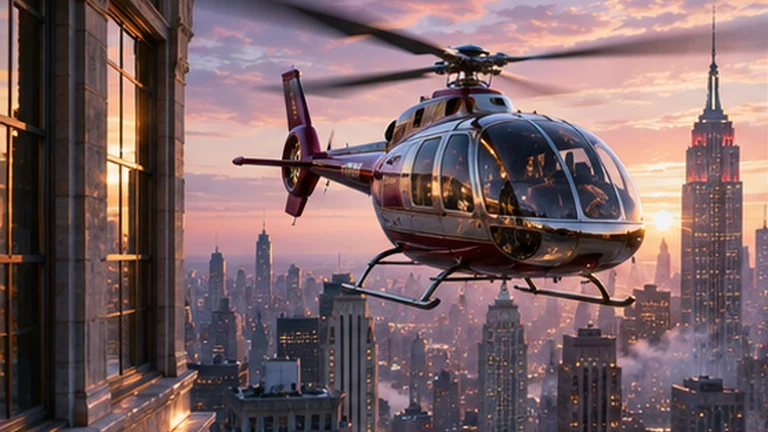
Compare clips generated from written prompts. See how each model interprets the scene, action, and camera direction.
Create a video from a text prompt, animate a still image, or combine image, video, and audio references. Describe the action, pacing, and camera movement in your own words. Choose Seedance 2.0 for shorter scenes or Seedance 2.5 for clips up to 30 seconds. Preview your work with synchronized sound and download the finished video from your workspace. Set the aspect ratio and output resolution for your project.
Start Creating VideosExplore independent comparisons of text-to-video and image-to-video models. Look at how well each result follows the input, how naturally it moves, and how consistent it stays from frame to frame.
Compare clips generated from written prompts. See how each model interprets the scene, action, and camera direction.
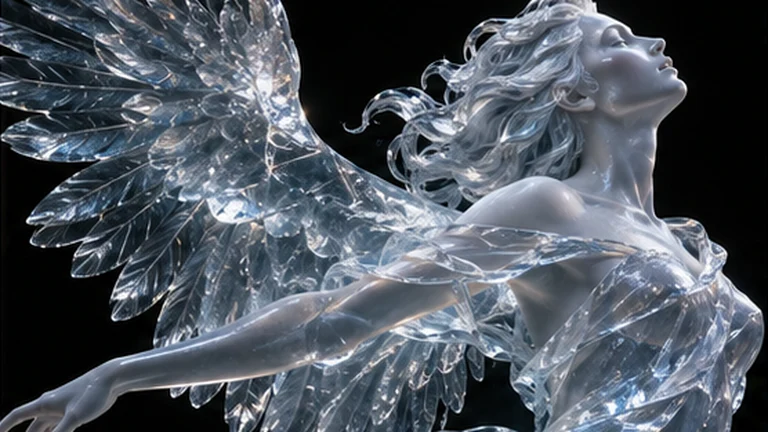
Compare how different models animate a source image while keeping its subject and visual details recognizable.
Artificial Analysis runs the Video Arena independently. Open the leaderboard to see current rankings and compare examples for each input type.
Find a model for your scene, reference media, and output needs.
Standard ModelCombine images, video, and audio, then tell the model how to use each reference.
Try NowThe previews are in-house motion studies. In the workspace, choose a model to see its supported input formats, durations, resolutions, and aspect ratios.
Explore camera movement, framing, and lighting in sample clips from city flyovers to product close-ups. Play any clip here to see the movement in context. Use these examples as a starting point for your own composition, pacing, and camera direction.
Start with a text prompt, image, video, or audio reference. Choose an aspect ratio and resolution in the video workspace, then preview and download your finished clip.
Start Creating VideosSeedance 2.5 and Seedance 2.0 turn text, images, and reference media into short videos. Choose a model based on your input material, desired length, and how much control you need over the shot.
Start with a written brief, animate an image, or combine image, video, and audio references. In Multi Reference mode, type @ to tell the model how to use each file.
Describe dialogue, music, or ambience in the same prompt as the visuals. Enable audio generation when sound is part of the shot.
Specify framing and motion in plain language, from a locked-off close-up to a slow tracking shot. Add a reference clip to illustrate the movement you have in mind.
Set up a shot, compare variations, and download the take you choose from one workspace. The generator shows available settings for the model and input mode you select.
Use Seedance 2.0 for clips up to 15 seconds, or Seedance 2.5 when your take needs up to 30 seconds. The generator shows the supported duration for each mode.
Choose from the available aspect ratios and resolutions. Add an optional last frame when you want an image-to-video clip to finish on a specific composition.
Review a 480p draft before requesting a higher-resolution version. Use Video Edit or Video Extend with a reference clip when you need a revision or a separate continuation.
Combine media references, direct the camera and generate synchronized sound in one video workspace, from first idea to preview.
Generate speech, ambience or sound effects alongside the visual action. Describe who is speaking, when a sound should start and how the audio should relate to the scene. Play the completed clip in the workspace to review the timing.
Describe a close-up, slow push-in or tracking shot. Explain where the subject enters and where the camera stops. In Multi Reference mode, a video can illustrate your intended movement and framing.
Guide appearance with images, motion with video and sound with audio. In Multi Reference mode, type @ in the prompt to assign each asset a purpose. The workspace shows supported reference types and limits for the selected model.
Seedance 2.0 supports clips up to 15 seconds and Seedance 2.5 up to 30 seconds. The workspace shows durations for the selected model, mode and operation.
Begin with a still image and describe what changes in the scene. Add an optional last frame in image-to-video mode when you want the take to end on a particular composition or transition.
Keep your prompt and settings consistent while generating multiple variations. Review the results and download the version you prefer. The workspace calculates the total credit cost before you submit the batch.
Choose a Seedance video plan that fits how often you create.
For first projects and occasional creators
For creators publishing regularly
For high-volume video workflows
For production teams and agencies
Create product reveals, visual examples and cinematic scenes. Start with a prompt or existing media, then choose a frame and duration for the channel.
Use a product photo to set the starting composition. Describe the reveal, use a close-up to draw attention to the details and try several variations for a campaign. Choose a format for the placement before generating your clip.
Start with a diagram or prompt, then describe the order of the action. Use the clip to show a step in a process or connect two parts of a lesson.
Plan a scene with a written brief or a set of reference images. Describe the composition, camera movement and rhythm of the action. Use a Seedance 2.5 draft to review a take before requesting the final version.
Compose short clips for a vertical feed or a widescreen edit. Give the shot a clear opening, describe the motion, framing and background sound, then compare versions to see which action makes the strongest opening and which shot fits the next cut. Choose the format for the channel, preview the result and download your chosen clip from My Creations.
Begin with a description, animate an image or combine several reference types. Pick the workflow that fits the material you already have and the scene you want to create.
Start from a description when you have an idea for a scene but no source image. Write down the subject, action, camera movement and sound, then choose your format in the workspace and preview the generated take.
SeedanceAI
Start from an image when the opening composition is already set. Describe how the subject should move, how the camera should travel and what the viewer should see. An optional last frame can guide the ending.

SeedanceAI
Combine reference images, video or audio when different assets should guide different parts of the shot. Use the @ picker to tell the model what each asset contributes, such as the subject, movement or sound.
SeedanceAI
Answers to common questions about generating video with SeedanceAI.
Both models turn prompts and references into short videos. Seedance 2.0 supports up to 15 seconds. Seedance 2.5 supports up to 30 seconds, draft previews, editing and continuation. Select a model in the workspace to see available inputs, durations, aspect ratios and resolutions. SeedanceAI is an independent tool.
Output options can include 480p, 720p and 1080p. Start with a prompt, first frame or supported media references. Seedance 2.0 supports up to 15 seconds and Seedance 2.5 up to 30 seconds. Common formats include landscape, portrait and square. Pick a model and input mode to see available options in the workspace.
Enable audio in the generator and describe the sounds together with the action. Include the words a character should say, where ambience should be audible or when a sound effect should start. Preview the generated take to review audio and picture together.
In Multi Reference mode, upload images, videos or audio you have permission to use. Type @ in the prompt and select a file. Describe which image sets the subject's appearance, which video guides movement and how audio should fit the scene. The workspace shows supported file types and limits for the selected model.
Describe the movement in plain language, such as a slow push-in or a tracking shot following a subject. Explain what should be visible at the start and end of the movement. A reference video can also illustrate the motion you want the model to follow.
Check the result card for its status and any error message. When the app confirms that generation failed, the associated credits are returned. Check your prompt, file type and model settings before retrying. For a batch, the result list shows the status and errors for each clip separately.
Sign in and find the clip in your video history. Preview it to confirm you have the right one, then select Delete on its result card. Download the MP4 first if you need to keep a copy. Confirming removes the clip from your history. You can use the original inputs again to create a new version. My Creations
Sign in, open the subscription page and use its cancellation option. After making changes, check the plan status and the end date of the current paid period on that page. Earlier credit transactions are available in your account's credit history. Subscription
The refund policy explains how SeedanceAI handles failed generation, credit returns and refunds for purchases. Review the full terms and have your order number and reason ready before requesting a payment refund. Refund Policy
Credits from packs do not expire. Subscription credits are issued at the start of each paid period and expire at its end.
Start with a prompt, animate an image or add media references. Choose a Seedance model, describe the action, movement and sound you want, then preview and download the result from your workspace.
Start Creating Your Seedance AI Video